With access to Workflows, your team is equipped with automated go-to-market motions that will save time, increase productivity, and close more deals. Workflows ensure that every opportunity is prioritized when and how you prefer.
Workflows are enabled and controlled at the organization level by your admin. Admins should use these step-by-step instructions, which make the process easy by focusing on the practical application and omitting the technical jargon: Workflows Implementation Guide(opens in a new tab)
Once enabled by your admin, you will see the option to Create a Workflow in all available locations in the ZoomInfo Sales and ZoomInfo Marketing platforms.
Triggers, Filters, and Actions
Workflows allow you to automate elements of your go-to-market process that you've done manually in the past.
Workflows are based on a series of triggers, filters, and actions. There are limitless combinations of triggers and filters you can set up to generate actions. Let's take a look at each element of the Workflow.
Trigger
A trigger is an event that prompts a Workflow to happen.
Filter
Filters allow you to narrow down the list of companies or contacts that you're working on.
Action
An action is the activity that you want to see happen when the trigger and filters are met.
(Hover for more info)
Types of Workflows Triggers
Take a moment to familiarize yourself with the list of Workflows Triggers. In the section following, we'll go over examples of Triggers and Filters, as well as examples of Actions.
Saved Search (New contacts and companies are added, or new intent signals are identified)
Funding (Funding received in last and total round)
Technologies (Technology is added or dropped)
Intent
Scoops
StreamingWebSights
Streaming Intent
FormComplete
Examples of Triggers and Filters
Here are four examples of triggers and filters that might be important to a GTM team:
When a company gets a round of funding (trigger) and that company has more than 500 employees (filter)
When a company installs a new CRM (trigger) and that company is in a certain industry in a certain state (filters)
When a company visits your website (trigger) and ZoomInfo has contact information about a Chief Technology Officer at that company (filter)
When a company shows an Intent Signal for X Topic (trigger) and ZoomInfo has contact information about a Marketing Director at that company (filter)
Examples of Actions
When building your Workflow, you will be prompted to add actions immediately after choosing your trigger type. These actions can be filtering by specific Salesforce objects, exporting to CRMs or Marketing platforms, or actions can be assigned that discover ZoomInfo contacts.
Once you’ve configured which triggers and filters you’re interested in tracking, you can tell ZoomInfo to execute a variety of actions. You can view the full list of actions that are available when building a Workflow. Let’s use the same three examples from above, but now we’ll layer on actions:
When a company gets a round of funding (trigger) and that company has more than 500 employees (filter), send me an email about this company (action)
When a company installs a new CRM (trigger) and that company is in a certain industry in a certain state (filters), assign that account to the SDR who covers that state in Salesforce (action)
When a company visits your website (trigger) and ZoomInfo has contact information about a Chief Technology Officer at that company (filter), put that Chief Technology Officer into an Engage Salesflow (action)
When a company shows an Intent Signal for X Topic (trigger) and ZoomInfo has contact information about a Marketing Director at that company (filter), export that contact to Salesforce as a Lead (action)
Build Your Workflow
As you've seen in the previous sections, there are multiple types of Workflows to create based on the triggers you select. In the walkthroughs below, you'll see a breakdown of building a Contact Saved Search workflow with actions and settings that need configuring.
Note: While each Workflow will be unique based on filter criteria and the action selection, all Workflows have two parts:
The Trigger
An Action
Each Workflow will have one Trigger but can have multiple Actions.
The Workflows Playbook
The Playbook
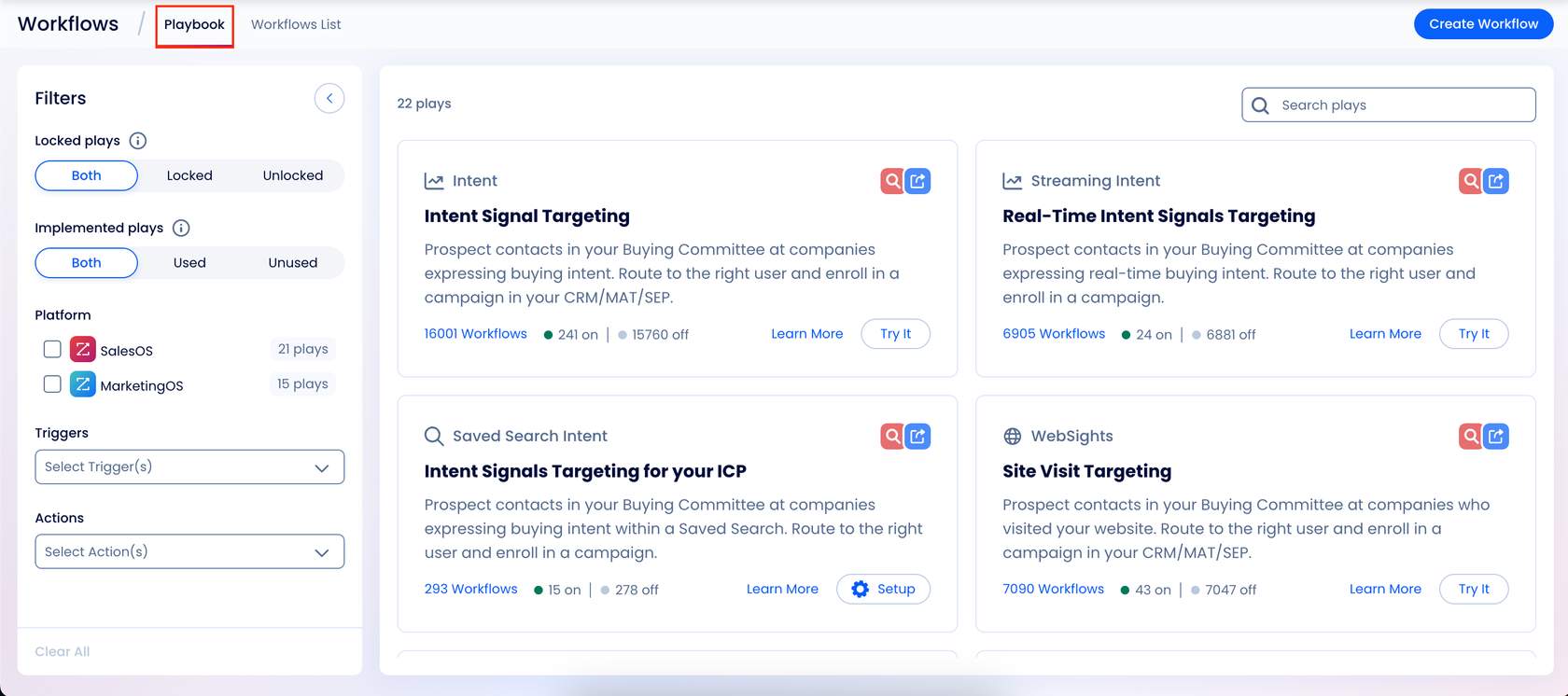
The Workflows Playbook is stocked with over 30 different pre-built plays. You'll see the Playbook tab next to the Workflows List on the Workflows tab. You can use this Playbook to filter by ZoomInfo Sales or ZoomInfo Marketing, Locked or Implemented Plays, and more.
These plays are helpful as pre-built resources or guidance when building your own play. Let's take a look further into the Playbook.
Filters
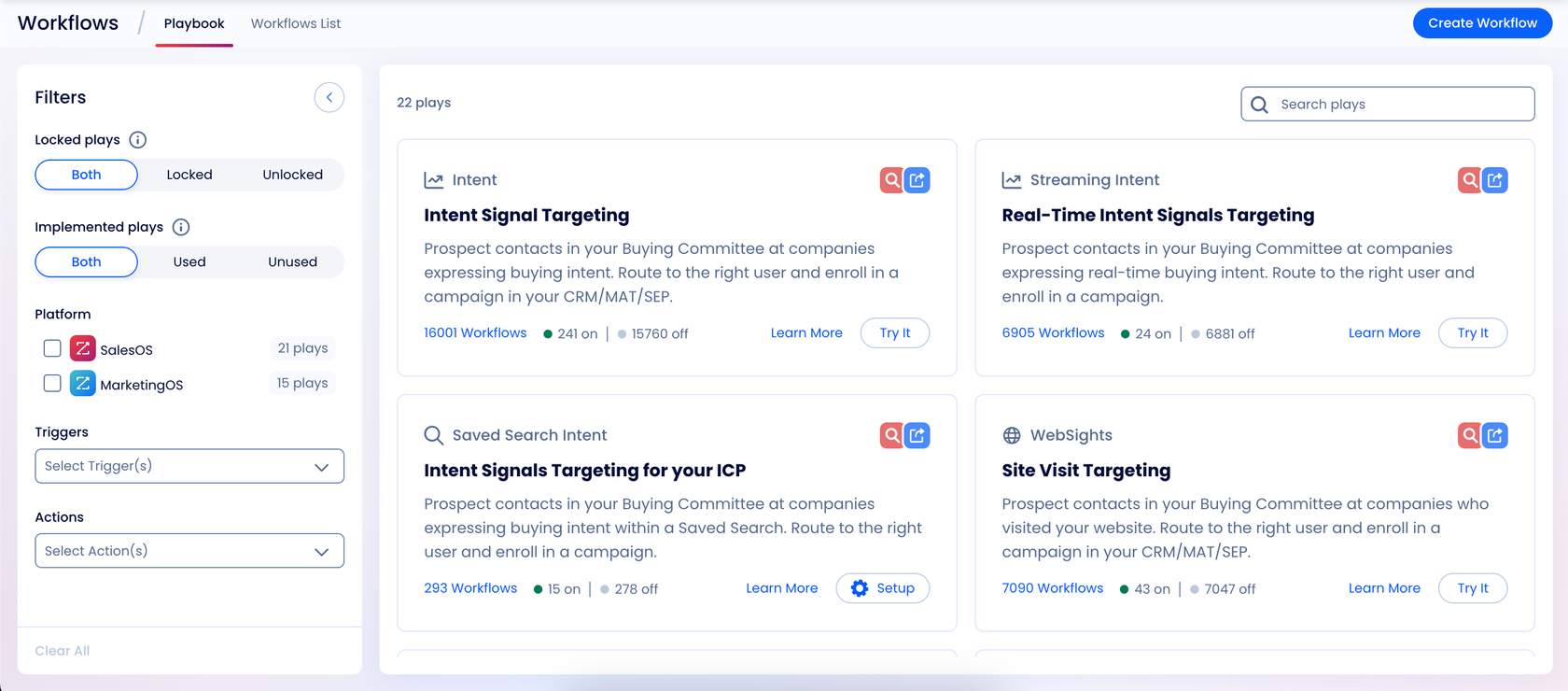
There are multiple filters to help narrow down the plays that will be most relevant to you. Here are each of the filters available when looking through the playbook:
Locked Plays
Both
Locked
Unlocked
Implemented Plays
Both
Locked
Unlocked
Platform
ZoomInfo Sales
ZoomInfo Marketing
Triggers
Actions
When using the Triggers and Actions filters, you'll have multiple options to choose from. Here are those options:
Actions: Discover ZoomInfo Contacts, Export to Business Systems
You'll notice that each trigger option is the same one we've reviewed previously in this learning. Each trigger will allow you to pinpoint the exact type of workflow and play you'd like to use.
Using the Playbook
Once you've chosen your preferred filters, you can review the relevant plays. From the homepage view, you can search for specific plays and export those plays, and you can also see how many times those plays are being used in Workflows across the platform.
From the view to the right, you can begin implementing the plays you've found. You can use the blue export button to export plays, and you can also see a brief description and trigger type listed for each play to give you the necessary details about the play.
Using a Playbook Workflow
Now that you have all of these plays at your fingertips and you've learned how to build a Workflow, you can use the plays in the playbook. This Workflow process will be very similar to the Building a Workflow section, but you will be provided with pre-built action and trigger suggestions that you can adjust to your preferences.
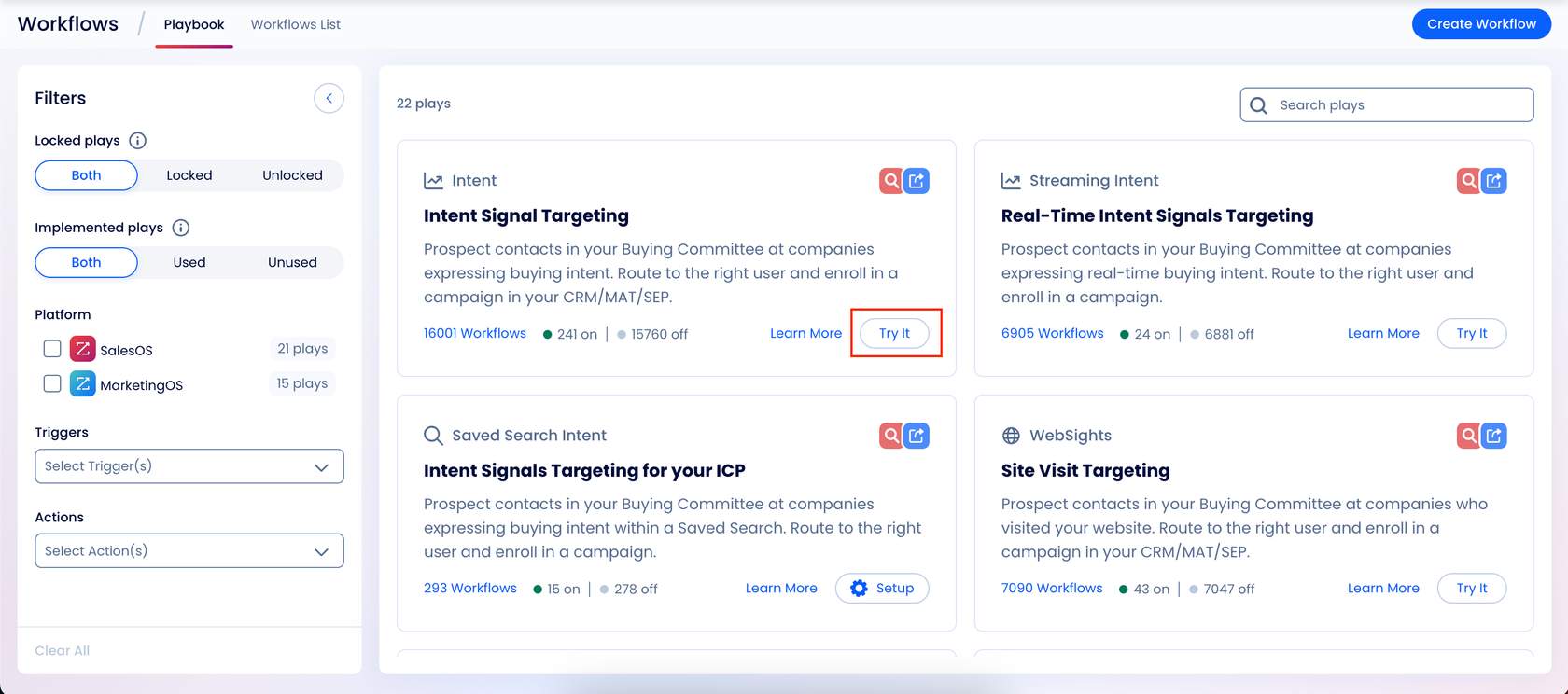
To begin using a play you've found, click the Try It button and follow the steps you used when learning about Building a Workflow in the previous section. These templates are preset with the Trigger type, allowing you to adjust and fine-tune the actions and additional triggers to fit your Workflow.
Quick Recap
Now that you've finished the course, you're equipped with the knowledge to begin using Workflows during your prospecting efforts. Workflows will save you time by automating tasks that can be time-consuming when done manually.
Now that you've finished the course, you're able to:
Accurately identify triggers, filters, and actions
Differentiate between the types of Workflow triggers
Use triggers and actions in a Workflow
Build multiple types of workflows from scratch or from the Workflows playbook